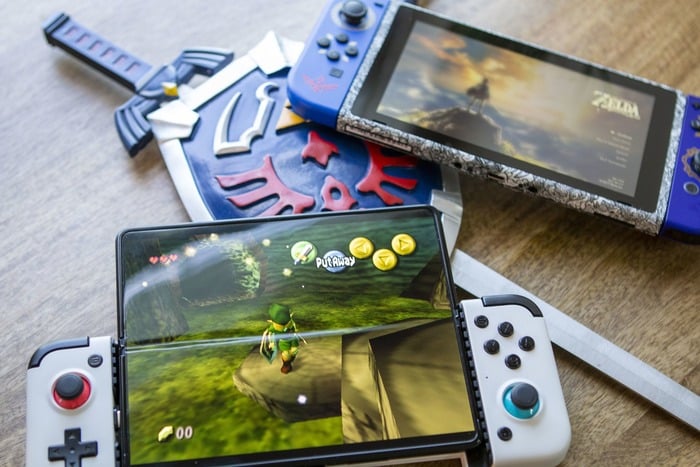
Mobile gaming has seen tremendous growth in recent years, with powerful tablets now capable of delivering impressive graphics and smooth gameplay. Yet, many gamers still crave the depth, complexity, and vast libraries of titles that are primarily available on PC. The good news is that you no longer have to choose between portability and a rich gaming experience. Thanks to advancements in emulation technology, streaming, and cloud services, your tablet can serve as a portable gaming hub capable of running many PC titles.
This guide explores how you can leverage mobile emulators to access your PC game collection on your tablet. From understanding the underlying technology to optimizing your device for peak performance, you’ll learn how to break free from the limitations of traditional mobile gaming and unlock a whole new world of portable entertainment.
Understanding Mobile Emulation
Emulation technology acts as a bridge connecting your tablet to the expansive universe of PC gaming. At its core, an emulator is a specialized software that mimics a different hardware environment, allowing programs designed for one system to run on another. When it comes to gaming, emulators simulate the PC hardware and operating system within your device, tricking games into believing they are running on their native platform.
This process involves translating instructions from one system architecture to another, enabling your tablet to understand and execute PC-specific code. As a result, users can play a variety of classic and even some modern PC games directly on their mobile devices, provided the emulator is compatible and properly configured.
What is an Emulator and How Does it Work?
Emulators create a virtual environment that replicates the essential hardware components of a PC, including the CPU, memory, graphics processing units, input devices, and operating systems like Windows. This complex setup allows your tablet to run PC applications by translating system calls and instructions into a form that your device can process.
For example, some emulators utilize virtual x86 environments to run Windows-based applications on Android or iOS devices. Others employ compatibility layers like Wine, which allow Windows programs to operate on non-Windows systems. The effectiveness and performance of these emulators depend on their design, your device’s hardware, and the specific games you wish to run. While emulation can introduce some performance overhead, advancements have made it increasingly feasible to enjoy demanding titles on tablets.
Different Types of Emulation
There are several approaches to playing PC games on tablets, each suited to different needs:
- Native Emulation: This method involves running an emulator that mimics the entire PC environment directly on the device. Examples include DOSBox for retro DOS games or Wine-based solutions that enable Windows applications on Android or iOS. Native emulation often provides the most seamless experience for older or less demanding titles but requires significant system resources and setup.
- Streaming Solutions: Instead of emulating the game locally, streaming solutions like Steam Link or Moonlight transmit video and audio from a powerful PC to your tablet. Your device acts as a remote display and controller, while the actual game runs on your PC. This approach leverages your PC’s processing power and offers high compatibility with modern titles.
- Cloud Gaming Services: Platforms such as GeForce NOW, Xbox Cloud Gaming, or Shadow host games on remote servers, streaming gameplay directly to your tablet. This method demands minimal processing power from your device but relies on a fast, stable internet connection to ensure smooth play.
Benefits and Limitations of Tablet Emulation
Advantages:
- Portability: Play your favorite PC titles anywhere, anytime.
- Game Library Access: Reach thousands of games not available on mobile app stores.
- Cost Savings: Use existing PC game libraries without purchasing mobile-specific versions.
- Touch Compatibility: Some games adapt well to touch controls, enhancing portability.
Challenges:
- Performance Limits: Tablets generally have less processing power than dedicated gaming PCs, affecting game smoothness.
- Control Challenges: Complex or fast-paced titles often require external controllers for optimal play.
- Battery Drain: Emulation and streaming are power-intensive, reducing battery life during extended sessions.
- Compatibility Issues: Not all PC games will run smoothly or at all through emulation and streaming.
Understanding these factors helps set realistic expectations and guides you toward the best solution based on your device’s capabilities and gaming preferences.
Best Emulators for Playing PC Games on Tablets
Choosing the right emulator is key to a smooth gaming experience. Your options depend heavily on your tablet’s operating system—Android generally offers more flexibility, while iOS devices have stricter limitations.
Android-Based Emulators
Android tablets benefit from a broader array of emulation options:
ExaGear Windows Emulator
- Designed to run Windows applications and legacy games on Android
- Supports many classic titles from the 90s and early 2000s
- Creates a virtual x86 environment for compatibility
- Well-suited for strategy games and RPGs that don’t demand cutting-edge graphics
LDPlayer
- Originally a Windows Android emulator, now capable of running PC games on high-end Android tablets
- Features extensive keyboard and gamepad mapping capabilities
- Ideal for strategy titles and MOBAs
- Offers performance tuning tools to enhance gameplay
Limbo PC Emulator
- Open-source x86 emulator based on QEMU
- Can run various Windows OS versions like XP, 7, and 10
- More complex to set up but highly customizable
- Recommended for tech-savvy users who enjoy fine-tuning their setup
iOS-Based Emulators
Apple’s strict policies restrict traditional emulation, but options still exist:
UTM
- Virtualization software capable of running Windows and other OSes
- Accessible via AltStore or jailbreaking
- Supports both ARM and x86 emulation
- Requires advanced setup knowledge
Shadow Cloud Gaming
- Not an emulator but a cloud service that provides a full Windows environment
- Allows installation and playing of any PC game compatible with your subscription
- Demands a robust internet connection
- Monthly fee, but no need for high-end hardware
Steam Link
- Official streaming app from Valve
- Streams games from your PC to your iOS device with minimal latency
- Requires a working PC to be active during play
- Free with your existing Steam library
Comparison of Features and Performance
| Emulator | Platform | Ease of Setup | Performance | Control Options | Offline Use | Price |
|————–|———-|————–|————–|—————-|————–|———|
| ExaGear | Android | Moderate | Good for older games | Touch, gamepad, custom | Yes | Paid |
| LDPlayer | Android | Easy | Good | Extensive mapping | Yes | Free |
| Limbo | Android | Complex | Varies | Limited | Yes | Free |
| UTM | iOS | Complex | Moderate | Basic | Yes | Free |
| Shadow | iOS/Android | Easy | Excellent | Full PC support | No | Subscription |
| Steam Link | iOS/Android | Easy | Excellent | Gamepad, touch | No | Free |
Recommended Options Based on Tablet Specifications
- High-End Tablets (8GB+ RAM, latest processors): Use LDPlayer or ExaGear for direct emulation, or opt for Shadow or Steam Link for streaming.
- Mid-Range Devices (4-6GB RAM): ExaGear with performance tweaks or Steam Link if you have a gaming PC.
- Budget Tablets (2-3GB RAM): Focus on streaming options like Steam Link and cloud gaming services, especially for older or less demanding titles.
Selection depends on your device’s hardware and the types of games you prefer. Strategy and turn-based RPGs tend to work better with touch controls, while action games benefit from external controllers.
Setting Up Your Tablet for Top Gaming Performance
Turning your tablet into a capable PC gaming device involves more than installing emulators. Proper setup and hardware optimization are vital for a seamless experience.
Hardware Recommendations
Processor Power
- A minimum of quad-core processors
- Snapdragon 855/865/888 series or newer for Android
- A12 Bionic chip or better for iPads
- A dedicated GPU enhances graphics and emulation speed
Memory
- At least 4GB RAM for basic emulation
- 6-8GB RAM for smoother performance
- 8GB+ for demanding titles and multitasking
Storage
- Allocate at least 16GB for emulator software and games
- Use microSD cards or external drives for larger libraries
- Cloud storage options can also supplement local space
Display
- Higher resolution screens (full HD or better) improve visuals
- Larger screens (10-inch or more) facilitate controls
- Higher refresh rates (90Hz+) provide smoother gameplay
Optimizing Settings for Enhanced Performance
Performance Mode
- Enable “High Performance” or “Game Mode” on your device
- Disable power-saving features during gaming
- Adjust developer options for increased animation speeds (Android)
- Match in-game resolution to your display for clarity
Managing Background Apps
- Close all unnecessary apps before gaming
- Turn off automatic updates and syncing
- Use gaming-focused launchers for resource optimization
Network Optimization
- Connect via 5GHz Wi-Fi or wired Ethernet for streaming stability
- Position your device close to the router
- Prioritize gaming traffic if your router supports Quality of Service (QoS)
Thermal Management
- Use cooling pads or cases with heat dissipation features
- Remove protective cases that trap heat
- Take breaks to prevent thermal throttling during extended sessions
- Elevate your device to improve airflow
Essential Accessories
- Controllers: Bluetooth gamepads (e.g., Xbox, PlayStation, 8BitDo)
- Support: Adjustable stands, gaming grips, anti-glare protectors
- Audio: Headphones or earbuds for immersive sound
- Power: High-capacity power banks, fast chargers, or battery cases
Properly tuning your hardware and system settings ensures your tablet can run PC games more smoothly, providing a more enjoyable gaming session.
Advanced Emulation Techniques
Elevate your PC gaming experience on tablets by mastering advanced customization and performance enhancement methods.
Custom Controls and Keymapping
Touch Control Customization
- Design personalized on-screen control overlays
- Adjust button size, transparency, and placement
- Implement multi-touch gestures for complex commands
- Save different configurations for various game genres
Keymapping and Macro Creation
- Map keyboard shortcuts to tablet gestures
- Create macro sequences for repetitive tasks
- Use “hold” and “tap” functions for versatile controls
- Automate actions with scripting tools
Game-Specific Layouts
- Follow community-shared control schemes for popular titles
- Adapt layouts for combat, exploration, or menu navigation
- Use edge swipe gestures to access additional commands
- Position floating buttons for easier reach
External Controller Integration
Pairing and Configuration
- Connect Bluetooth controllers like Xbox, PlayStation, or third-party models
- Map controls within emulator settings
- Test input latency and sensitivity
- Use companion apps for extra customization
Combined Input Methods
- Use controllers for movement and combat
- Touch controls for inventory or menu navigation
- Gyroscopic aiming for precision
- Set profiles to switch between input modes seamlessly
Enhanced Features
- Enable vibration feedback for immersive feel
- Customize turbo and auto-fire functions
- Map emulator functions to controller buttons for efficiency
Performance Tuning and Optimization Tools
Graphics Adjustments
- Lower resolution scaling for higher frame rates
- Reduce visual effects and textures
- Enable frame rate caps to prevent overheating
- Use shader caching for faster load times
Memory and CPU Management
- Clear background processes before playing
- Use RAM cleaner apps to free up resources
- Assign specific CPU cores to emulator processes
- Implement overclocking profiles if supported
Specialized Optimization
- Use game-specific cheat tools to enhance performance
- Automate system tweaks with scripting for consistent results
- Monitor device temperature and adjust settings accordingly
Implementing these advanced techniques helps you push your tablet to handle more demanding PC titles, balancing performance and stability. Tailor your setup based on your device’s specifications and the games you wish to play, ensuring a satisfying portable gaming experience.
The ability to enjoy PC games on tablets signifies a new era in mobile gaming. Through emulation, streaming, and cloud services, your device can deliver experiences once exclusive to desktops. As hardware and software continue to evolve, the gap between mobile and PC gaming narrows, opening exciting possibilities for gamers everywhere—whether revisiting classics or streaming the latest titles.