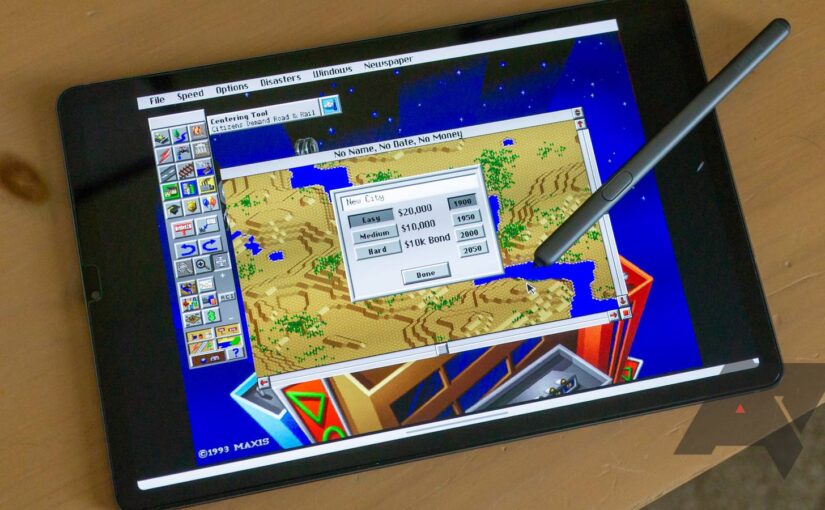
Exploring vintage DOS games on your current hardware might seem daunting, but with the right tools and knowledge, it becomes an achievable and rewarding experience. Whether you want to relive nostalgic favorites like Doom or SimCity or explore the vast library of classic titles, setting up DOS games on Android devices and Chromebooks offers a cost-effective way to experience gaming history firsthand. This guide will walk you through the necessary steps—from installing a reliable emulator to configuring controls and loading disc images—making it easier than ever to enjoy timeless DOS classics in the modern age.
How to set up and use a DOS emulator on Android and Chromebooks
The most popular and user-friendly DOS emulator for Android is Magic Dosbox. Its intuitive interface and helpful features make playing DOS games accessible even for newcomers. Unlike some older emulators, Magic Dosbox eliminates the need to run games via command line, providing a smoother gaming experience through its built-in options and customizable settings. Its advanced features help overcome common frustrations, such as hardware limitations or complex configurations, making it an ideal choice for playing classic titles on budget-friendly Chromebooks or Android devices.
Which version of Magic Dosbox should you use?
The free edition of Magic Dosbox offers a solid starting point, allowing you to test its capabilities without any cost. However, if you find the emulator useful and plan to expand your gaming library, upgrading to the paid version is worthwhile. The paid version permits adding multiple games to the main interface, supports virtual controls, and enhances overall functionality. Since many DOS games benefit from a physical controller, investing in the paid app can significantly improve gameplay, although it’s not strictly necessary if you prefer using a keyboard and mouse.
When launching Magic Dosbox for the first time, it prompts you to create two folders in your device’s internal storage to organize game files and settings. On Android phones and tablets, these can be placed virtually anywhere, but on Chromebooks, they must reside within your Downloads folder—this is the only directory accessible to both Chrome and Android applications with full permissions. Ensuring these folders are correctly set up is vital for the emulator to function properly, so double-check their placement before proceeding.
How to install DOS games on Android and Chromebooks
After completing the initial setup of Magic Dosbox, the next step is installing your preferred DOS games. While the process is similar across Android devices and Chromebooks, we’ll use a Chromebook setup for demonstration, which also applies to phones and tablets.
How to copy game files to Magic Dosbox
For our example, we’ll use the shareware version of Doom. Though modern ports like the official Bethesda release offer enhanced graphics and features, this classic version remains a perfect illustration of downloading and installing DOS games through an emulator. Begin by downloading the game files from reputable sources, then unzip them into the Games folder within your Magic Box directory. This setup ensures the emulator can access and run the files smoothly.
How to add a DOS game into Magic Dosbox
Once your game files are in place, it’s time to add the game to the emulator’s library:
- Launch Magic Dosbox.
- Tap or click the plus button on the interface.
- Select New Game from the options menu.
A configuration window appears with various settings. Most of these can be left at their default values, as only specific games require detailed adjustments. For example, popular titles like Doom typically need only basic hardware configurations.
Preparing the setup program in Magic Dosbox involves specifying the game’s launcher or setup file:
- Enter the game’s name in the Title field.
- Navigate to the Hardware section.
- Tap Choose and locate the folder containing your game files.
- Scroll to the Software section.
- Tap Choose under Setup and select the relevant batch or executable file, such as INSTALL.BAT.
Confirm your selections by tapping the checkmark. This process creates an icon on the emulator’s home screen, representing your game, ready for launching.
How to set up a DOS game in Magic Dosbox
Even if you’re eager to jump directly into gameplay, it’s wise to run through the installation process initially. Installing Doom first allows you to familiarize yourself with the emulator’s settings and controls.
- Tap and hold the game’s icon.
- Choose Edit, then Setup.
- The game’s installer will run. Follow the prompts to install Doom onto the virtual C: drive. Use the virtual keyboard if your device lacks a physical one.
- When prompted for control options, select Keyboard+Joystick for versatile input.
- Proceed with default settings or customize controls as needed.
- Finish the installation by selecting Save parameters and launch DOOM.
To streamline future play sessions, you can configure the emulator to skip the setup process:
- Return to the home screen.
- Tap and hold the game icon, then select Edit.
- Under Software, choose Main program and set it to DOOM.EXE.
- Under Setup, select SETUP.EXE.
With these adjustments, launching Doom or your chosen game will bypass the setup phase, taking you directly into gameplay.
How to set up controls in Magic Dosbox
Playing DOS games effectively depends on proper input methods. The emulator supports keyboards, controllers, and on-screen buttons, allowing flexibility based on your device.
For devices with physical keyboards and mice, ensure the mouse settings are set to Absolute mode for precise control. If you’re using an external controller, Magic Dosbox allows mapping of keyboard keys to controller buttons, enabling classic gameplay experiences of titles like Doom or SimCity.
For games relying on mouse input, such as SimCity 2000 or The Oregon Trail, a virtual mouse can be configured within the emulator. You can also create custom on-screen buttons for essential controls—although this process can be intricate and may require the paid version. The built-in guide provides detailed instructions for placing virtual buttons, which can be mapped to keyboard keys or joystick directions for seamless play.
How to play DOS games from disc images
Some DOS titles require a CD-ROM to run, especially those that weren’t designed to operate solely from files stored on a hard drive. Using disc images like ISO files enables you to emulate this setup without physical discs and prevents Android from indexing game files unnecessarily.
How to play a DOS game from an ISO file
Suppose you have an ISO image of The Ultimate Shareware Games Collection from 1995. Save the ISO file into your DOS games folder, making sure to rename files with a `.img` extension to `.iso` if necessary—Magic Dosbox recognizes ISO files by their extension.
To add a disc image game:
- Tap the plus button in Magic Dosbox.
- Enter a game title.
- Navigate to the Hardware section.
- Select the game folder.
- Enable the CD-ROM option.
- Tap the plus icon next to enable CD-ROM support.
- Choose the ISO file.
- Enter a label for the CD.
- Save your settings.
This setup allows you to select the CD image as a virtual disc, enabling the emulator to run games that depend on CD-ROM access, just like they would on old hardware.
—
Playing classic DOS titles may involve some effort, but it offers an authentic way to experience gaming history. For a more comprehensive understanding of game development, consider exploring resources on understanding indie game development. Whether you aim to relive childhood memories or learn about game creation, setting up and running DOS games on modern devices opens a portal to the past, making these timeless titles accessible once again.