


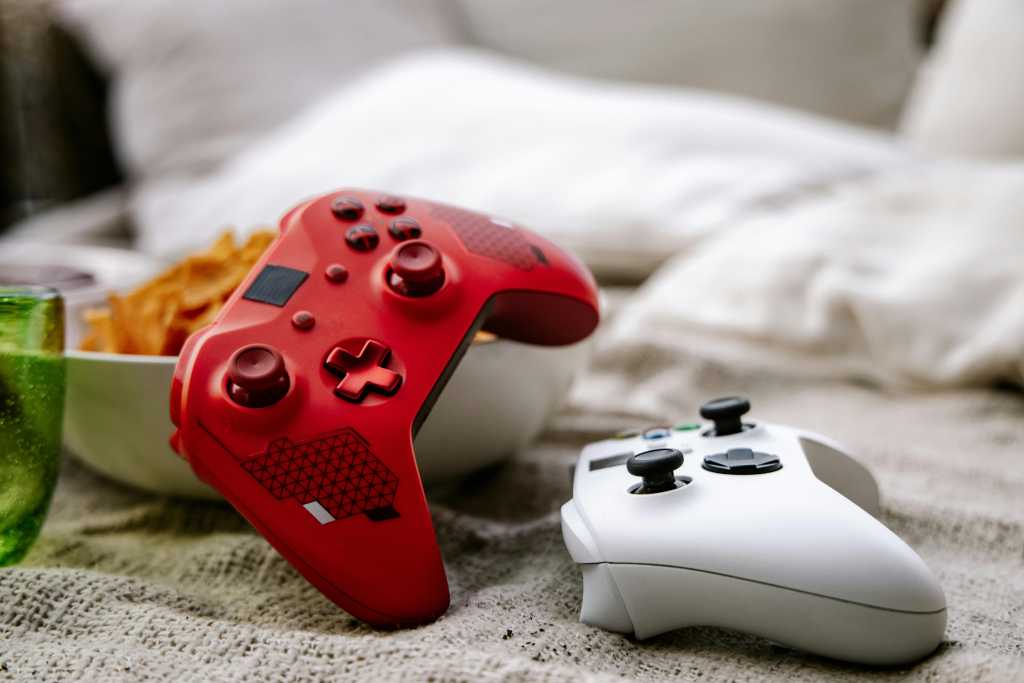
Navigating the world of PC gaming often involves a mix of preferences and hardware choices. While many players swear by the precision of a keyboard and mouse, there are moments when a controller offers a more relaxed, console-like experience—especially when gaming on a large screen or from the comfort of your couch. Setting up a controller properly in Steam ensures seamless gameplay and eliminates frustration caused by incompatible or unrecognized devices. Whether you’re using an Xbox controller, a generic gamepad, or any other type, configuring it correctly can make all the difference in your gaming experience.
Getting your controller to work smoothly with Steam involves a few simple steps. Proper setup not only guarantees compatibility but also enhances overall control responsiveness. This guide will walk you through the process of configuring your controller for your favorite games, ensuring you can jump straight into gameplay without technical hitches. Additionally, if you’re interested in expanding your skills in game development or understanding the challenges involved, exploring topics like creating engaging content or understanding the complexities of game design can be insightful. For those considering a career in the gaming industry, learning where to seek job opportunities is equally important.
How to set up your controller in Steam
Start by launching Steam and accessing the Settings menu located in the top-left corner of the application window. Once there, navigate down the menu and select the Controller option. Within this section, you’ll find settings related to external gamepad configurations.
Under External Gamepad Settings, locate the checkbox corresponding to your specific controller type. For instance, if you’re using an Xbox controller, check the box labeled Enable Steam Input for Xbox controllers. If your device is a generic controller, choose the option that enables Steam input for generic controllers. Properly configuring this setting is crucial for ensuring your controller functions correctly across different games.
Once you’ve adjusted these options, exit the menus and head over to your Library. Find the game you wish to play with your controller, right-click on it, and select Properties. From the list on the left side, click on Controllers. On the right, you’ll see options like Use default settings or Disable Steam input. Change this setting to Enable Steam Input to activate controller support for that game. After making these changes, it’s recommended to restart your PC to ensure the settings are properly applied.
By following these steps, your controller should now be fully functional within Steam and compatible with your selected game. This process can be repeated for other titles, allowing you to enjoy a consistent gaming experience across your library. For further customization, you can also calibrate your controller by opening Calibration and Advanced Settings, which can be found in the same menu where you selected your device.
If you’re interested in exploring more about game development, understanding the intricacies involved in creating engaging content is vital. Check out guides on how to develop a successful game dev blog, which can help showcase your projects and attract a wider audience. For those venturing into life simulation games, learning how to become a game developer in popular titles like BitLife can provide valuable insights into game mechanics and player engagement. The journey of game creation is filled with challenges, and understanding why game development is so demanding can prepare you for the road ahead. Lastly, if you’re considering a career in game development, knowing where to look for job opportunities is essential to advancing your professional path.
Remember: Proper controller setup not only improves gameplay but also enhances your overall gaming satisfaction. Take the time to configure your device correctly, and you’ll enjoy smoother, more responsive control in all your favorite Steam titles.
For more detailed insights into game development and the hurdles developers face, visit this resource. If you’re looking to build your presence as a game developer or find employment opportunities in the industry, exploring strategies for job hunting in game development can be invaluable.