


Experiencing issues with Unity Web Player can be frustrating, especially as support for this plugin has been phased out over recent years. Despite official discontinuation, many gamers and developers still seek ways to access older Unity-based browser games. This guide provides comprehensive methods to troubleshoot and fix problems associated with Unity Web Player, ensuring you can enjoy those classic titles without hassle. Whether it’s using alternative browsers, finding updated game versions, or leveraging legacy support, these solutions will help you regain access with minimal technical difficulty.
—
Use Mozilla Extended Support Release (ESR) for Legacy Compatibility
Although mainstream browsers like the latest Firefox versions have dropped support for NPAPI plugins—including Unity Web Player—Mozilla offers an Extended Support Release (ESR) version that still maintains this compatibility for legacy applications. Downloading and installing Firefox ESR can serve as a workaround to run older Unity Web Player games smoothly.
1. Visit the Mozilla Firefox download page.
2. Select the “Mozilla Extended Support Release” channel from the available options.
3. Click on “Download” to obtain the installer.
4. After downloading, double-click the setup file and follow the on-screen instructions to complete the installation.
5. Once installed, launch Firefox ESR and attempt to load your Unity Web Player game.
This approach often resolves issues caused by modern browsers’ removal of NPAPI support, providing a stable environment for older Unity-based content.
Check for the Most Recent Version of the Game
Many developers have ported their older Unity Web Player titles to WebGL, which is supported by all modern browsers. Search for the latest version of your favorite game, as these newer versions often run more reliably and without additional plugins.
- Use search engines to find updated game versions hosted on official or reputable platforms.
- Look for WebGL-compatible options that are often offered alongside or replacing the original Unity Web Player versions.
- Many of these updated games are free, making it easier to switch to a more compatible and stable experience.
By opting for the latest releases, you reduce compatibility issues and enjoy smoother gameplay, often with enhanced graphics and features.
Use Internet Explorer 11 on Windows 7 for Legacy Support
If you are running Windows 7, Internet Explorer 11 still offers compatibility with Unity Web Player content due to its support for legacy plugins.
Step 1 – Download and Install the Unity Web Player
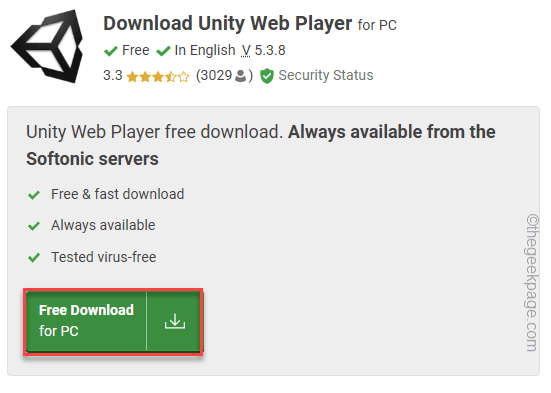
Since the official Unity site no longer hosts the download, you must obtain the plugin from trusted third-party sources:
1. Download the Unity Web Player installer from a reputable site.
2. Locate the downloaded file and double-click it to initiate installation.
3. Follow the prompts, agreeing to terms when necessary.
4. After installation, restart your computer to ensure the plugin integrates correctly.
Step 2 – Launch Games in Internet Explorer 11
1. Confirm that Internet Explorer 11 is installed on your system. If not, download it from the official Microsoft website.
2. Open Internet Explorer 11.
3. Navigate to the game’s webpage that requires Unity Web Player.
4. Test whether the game loads and runs properly.
This method is particularly effective for Windows 7 users who need legacy plugin support, but be aware that Microsoft has phased out IE 11 on newer Windows versions.
—
Additional Tips and Resources
- Regularly check official Unity forums and support pages for updates on Web Player compatibility and alternative solutions.
- Be cautious when downloading plugins from third-party sources—prefer reputable sites to avoid malware.
- For more detailed guidance on game development terminology, visit here.
- To explore how to secure a position as a game developer, refer to this employment guide.
- For insights into unlocking secret characters like the hacker in Game Dev Story, see this resource.
—
Final Thoughts
Although official support for Unity Web Player ended years ago, multiple workarounds exist to access older Unity-based browser games. Using legacy browsers or plugins, seeking updated WebGL versions, and leveraging compatibility modes can help you enjoy classic titles without frustration. Stay informed with official resources and community forums to keep up with ongoing developments and fixes related to Unity Web Player issues.