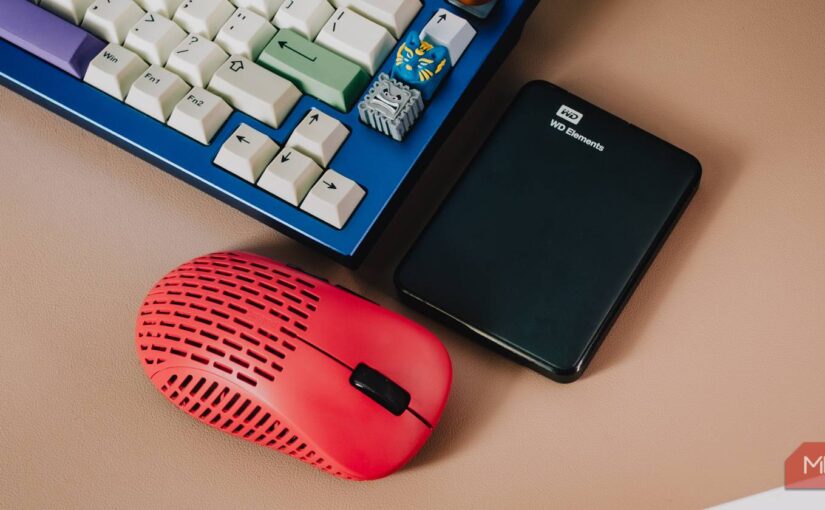
Playing your favorite Steam games without cluttering your internal storage has become easier thanks to the Steam Storage Manager. This feature allows you to run games directly from an external drive, saving space and offering greater flexibility for gaming on the go. Whether you’re sharing games with friends or simply want to keep your library portable, understanding how to set up and use this tool can streamline your gaming experience. This guide walks you through the process of managing your Steam library on external storage, from setup to gameplay.
How to Access the Steam Storage Management Tool
To start playing Steam games from an external drive, first, you need to access the Steam Storage Manager. Managing game files through Windows File Explorer can become confusing and time-consuming, especially as your library grows. Using the Steam Storage Manager lets you handle your game libraries seamlessly within Steam itself, avoiding the hassle of manual file management.
To open the Storage Manager, launch Steam, click on Steam in the upper-left corner, then navigate to Settings > Storage. Here, you’ll find options to add, remove, and organize your game folders efficiently.
How to Add an External Drive as a Steam Library Location
Once you’ve accessed the Storage Manager, connect your external drive to your PC. Next, click the + button beside your existing Steam library locations. This will prompt you to select a drive letter—make sure to choose the external drive you’ve just connected.
Steam will automatically create a folder named `SteamLibrary` on your external drive, along with the necessary subfolders to store game data. If you prefer a specific directory structure, select Let me choose another location, then browse to your preferred folder on the external device.
After setting this up, you can install new games directly onto your external drive or move existing ones. Remember, it’s best to avoid installing games into your internal drives if the files already exist there, as this can cause conflicts. To manage where your games are stored, proceed to the next section.
How to Transfer Existing Steam Games to Your External Drive
Moving your current Steam library to an external drive is an excellent way to free up space on your primary storage device. To do this, first, ensure your external drive has been added as a new Steam Library Folder, as discussed earlier. Then, in Steam, go to your Library, right-click on the game you want to move, select Properties, and navigate to the Local Files tab.
Click Move Install Folder or Move (depending on your Steam version), then select your external drive’s library folder. Confirm the action, and Steam will handle the transfer. This process is straightforward and prevents the need for manual copying, reducing the risk of corrupting game files.
For additional space management, tools like SpaceSniffer can help visualize large files and identify unnecessary data that can be safely deleted.
How to Copy Steam Games for Portable Use
If you prefer to keep a copy of your games on an external drive without removing them from your internal storage, manual copying is required, as Steam’s built-in tools don’t support creating portable copies directly. First, locate the `steamappscommon` folder within your current Steam directory—this is where your game files are stored.
Open the folder, select the game data, and copy it to the same `common` folder on your external drive. To do this, you can use the Browse Folder option in Steam by clicking the three dots next to your game in the library and selecting Browse Local Files. After copying, you’ll need to validate the game files when you attempt to play from the external drive.
How to Play Steam Games From an External Drive
Once your games are stored on your external drive, launching them is simple. First, connect your external device to the PC you intend to play on. Open Steam and ensure the external drive is recognized as a library location.
In Steam, go to your Library, locate the game stored on the external drive, and click Install. Steam will detect existing game files and verify them, saving you time. The game will then be ready to play as if it were installed locally, with no need for reinstallation.
Performance may vary depending on your drive’s read/write speeds and the port used. For optimal results, connect your external drive via USB 3.0 or higher. For portable gaming solutions, high-speed MicroSD cards with appropriate adapters can also serve as compact, efficient storage options—just ensure you avoid common mistakes when selecting cards.
Carry Your Gaming Library Everywhere
The ability to carry your entire Steam library on an external drive or a portable microSD card means you can game on virtually any compatible system. This portability allows you to enjoy your favorite titles without re-downloading or reconfiguring each time, provided the external storage is properly recognized.
While the feature still has room for improvement, Valve’s addition of this capability marks a significant step toward more flexible gaming setups. As technology advances, expect even smoother integration and faster load times, making portable gaming more accessible than ever.