Changing the language for specific games on Steam can significantly enhance your gaming experience, especially if you prefer playing in a different language than your default system setting. Fortunately, Steam offers a straightforward way to set individual language preferences for each game, without affecting the overall platform language. This flexibility is particularly useful for gamers who want to explore titles in their original language or practice new languages. In this guide, you’ll learn step-by-step how to modify language settings for individual games and ensure they are correctly downloaded and configured.
Steam’s language configuration affects both the client interface and the language of the games you play. Adjusting these settings allows you to enjoy your favorite titles in your preferred language, provided the game supports it. Whether you’re switching for better immersion or accessibility reasons, the process is simple and quick. Before diving into the instructions, make sure your Steam client is installed and you are logged into your account.
—
How to Change the Language of Specific Games in Steam
The process of setting individual game languages involves accessing the game’s properties within your library. Here’s a detailed step-by-step breakdown:
- Launch your Steam client and navigate to your Library.
- Locate the game for which you want to change the language.
- Right-click on the game title and select Properties from the context menu.
- In the Properties window, click on the Language tab.
- From the drop-down menu, choose your desired language.
- Steam will automatically begin downloading the necessary language files if they are not already installed.
- Once the download completes, you can start the game in your selected language.
Keep in mind that not all titles offer support for every language. To verify available languages, visit the game’s store page on Steam, where supported languages are listed under the game’s description.
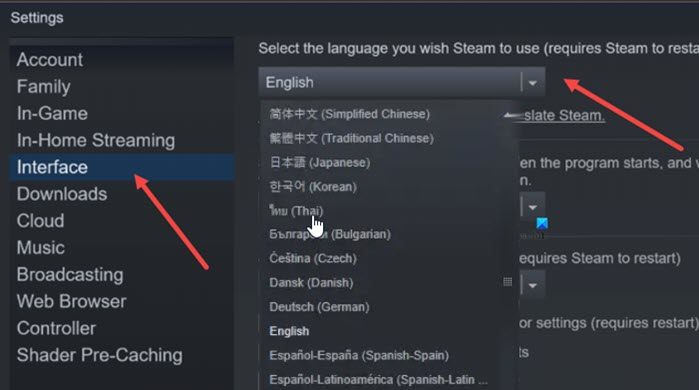
If you haven’t logged into Steam yet, do so on your Windows PC. After logging in, click on the Steam menu located on the top-left corner, then select Settings. In the Settings menu, go to the Interface tab, where you can choose your preferred language for the Steam client interface. Select your language from the drop-down menu, click OK, then restart Steam to apply the changes. After restarting, the client will display in your chosen language, and you can manage individual game languages as described.
Remember, if you select a language that your game supports, Steam may need to download additional files. These files enable the game to display menus, subtitles, or voice acting in your selected language.
—
Is Steam Free to Use?
Downloading and installing Steam is free, and the platform itself does not require any payment. However, many of the games available on Steam are paid titles, and their prices vary depending on the publisher and current sales. Some third-party games might also have independent language options, which are often configurable within the game itself rather than through Steam’s global settings. For more details on managing game refunds, see how to return a Steam game and get a refund.
—
Why Is Steam So Popular?
Since its launch in 2003, Steam has become the dominant digital distribution platform for PC gaming, thanks to its extensive library, frequent sales—sometimes up to 75% off—and community features. With over 150 million users worldwide, Steam provides a versatile environment for both casual and dedicated gamers. Its support for free-to-play titles, regular updates, and robust platform features contribute to its widespread popularity. Moreover, Steam’s support for multiple languages makes it accessible to a global audience, allowing players to enjoy titles in their native tongues. For insights into how game development works behind the scenes, you might explore the solo journey of indie game developers.
—
Additional Tips for Managing Language Preferences
If you are curious about the development process or want to understand certain game mechanics better, it can be helpful to consult guides related to specific titles. For instance, if you’re interested in the unlocking sequence for new features in popular games, you might find this useful: understanding when the new office unlocks in game dev story. Knowing how to tailor your language settings enhances your overall gaming experience and allows you to enjoy titles in a way that feels most natural to you.
—
Adjusting individual game languages in Steam is a simple process that can greatly improve your gaming enjoyment. Whether you’re immersing yourself in foreign language titles or managing multilingual collections, these steps will help you personalize your experience efficiently.