


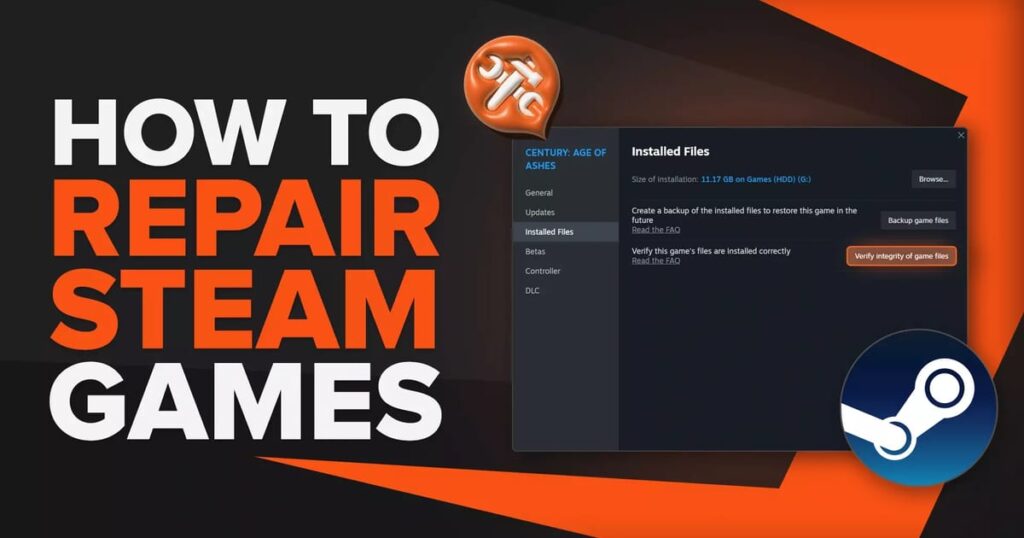
Addressing issues with Steam games can be frustrating, especially when they refuse to launch or function properly. Fortunately, there are straightforward ways to repair corrupted or missing files without the need to completely reinstall your games. These methods save time and bandwidth, allowing you to get back to gaming quickly. By verifying game files directly through the Steam client or even repairing your entire library, you can resolve most common problems efficiently. Additionally, understanding some technical concepts behind game development can help you troubleshoot more effectively. Keep in mind that performing these repairs often requires an active internet connection, but once completed, you can often play offline without issues.
How to Repair a Game in the Steam Client
When a Steam game encounters errors during launch, the most common cause is corrupted or missing files. This situation often arises after updates or new downloads, which can sometimes introduce corrupted data. The solution is to verify the integrity of the game files directly from Steam. This process checks for discrepancies between your local files and the official versions stored on Steam servers, replacing any corrupted or missing files in the process.
To do this:
- Launch the Steam application on your computer.
- Navigate to the Library tab located at the top.
- Locate the problematic game in your library list on the left.
- Right-click on the game and select “Properties” from the context menu.
- In the properties window, click on the “Local Files” tab.
- Click on “Verify Integrity of Game Files” and wait for the process to complete.
This method is effective for fixing issues with individual games, including popular titles like Counter-Strike, Dota 2, or The Witcher. The time needed to verify depends on the size of the game, with larger games taking longer to scan and repair. After the process completes, any corrupted files will be replaced, often resolving launch issues.
If you’re experiencing persistent problems across multiple games, you might want to verify the integrity of all your game files at once. This can be especially useful if many titles are affected or if you suspect broader corruption within your library.
How to Verify Game Files of the Whole Steam Library
Verifying the entire Steam library can help address issues like lag, crashes, or games that refuse to start altogether. This comprehensive approach scans all game files across your selected drive and repairs any corrupted data it finds. It’s particularly useful after system crashes, interrupted updates, or hardware issues that might have affected multiple game files.
To perform a full library repair:
- Open Steam and log into your account.
- Click on the Steam menu at the top left corner.
- Select “Settings” from the dropdown.
- In the settings window, click on “Storage” on the left sidebar.
- If you’ve moved your Steam games to another drive, choose that drive from the dropdown menu.
- Click on the three dots icon next to the drive and select “Repair Library”.
Steam will then proceed to scan all game files on the selected drive, fixing any that are corrupted or missing. The process might take some time depending on the number of games and their sizes. Once finished, your entire library should be in a healthier state, and issues like crashes or launch failures should be mitigated.
How to Force a Repair on a Steam Game
Sometimes, verifying files normally doesn’t resolve persistent problems. In such cases, forcing a repair by manually manipulating game files can be effective. This method involves temporarily renaming the game’s local files, uninstalling the game, and then reinstalling it to trigger a fresh verification.
Follow these steps:
- Open Steam and go to your Library.
- Right-click the game you’re having trouble with and select “Manage” > “Browse Local Files”.
- This opens your PC’s File Explorer at the game’s directory.
- Return one folder level (go up) and rename the game folder, for example, to “delete[GAME-NAME]”.
- Uninstall the game through Steam.
- Once uninstalled, go back to the File Explorer and rename the folder back to the original game name.
- Reinstall the game through Steam.
By renaming the folder and reinstalling, Steam will only verify the existing files rather than downloading anew. This helps fix any lingering corruptions without a full download. Remember, if you forget to revert the folder name before reinstalling, Steam will treat it as a new installation, creating a fresh copy in a new folder. This method is useful for resolving stubborn issues with specific games and can often be done quickly without losing saved data, provided you handle the folder names carefully.
—
Understanding the underlying technical concepts, such as how game files are managed, can be beneficial. For example, learning about components like the Entity Component System (ECS) can deepen your troubleshooting skills see here. Additionally, exploring strategies to optimize your gaming experience, like crafting immersive visuals for small screens, can improve overall gameplay quality more info here. If you’re interested in game development, understanding the role of developers (or “devs”) is crucial check this explanation. Furthermore, enhancing your in-game research or progression can often be achieved by exploring ways to earn more points in titles like Game Dev Story, which enhances your overall experience see here.
Performing these verification and repair procedures can significantly improve your gaming experience, ensuring smoother gameplay and fewer disruptions. Always keep your Steam client up to date to benefit from the latest fixes and features, and remember that most repairs require an active internet connection. Once fixed, you can often switch to offline mode and continue playing without worrying about connectivity issues.